Guide
How to proofread a restaurant menu before printing
6 min read
To proofread a restaurant menu before printing, check every price against your point-of-sale digit by digit, read every dish name and description aloud, test the printed QR code from a seated position, review margins and section breaks on the exported PDF, and have one fresh person order a full meal from a single printed copy. One disciplined pass in that order catches the errors that actually cost money.
Start with prices, not spelling
A printed menu freezes every mistake into paper. A wrong price, a misspelled dish, or a QR code that opens last season's menu will sit on your tables until you pay to reprint. So work in the order that matters, and start where money is lost.
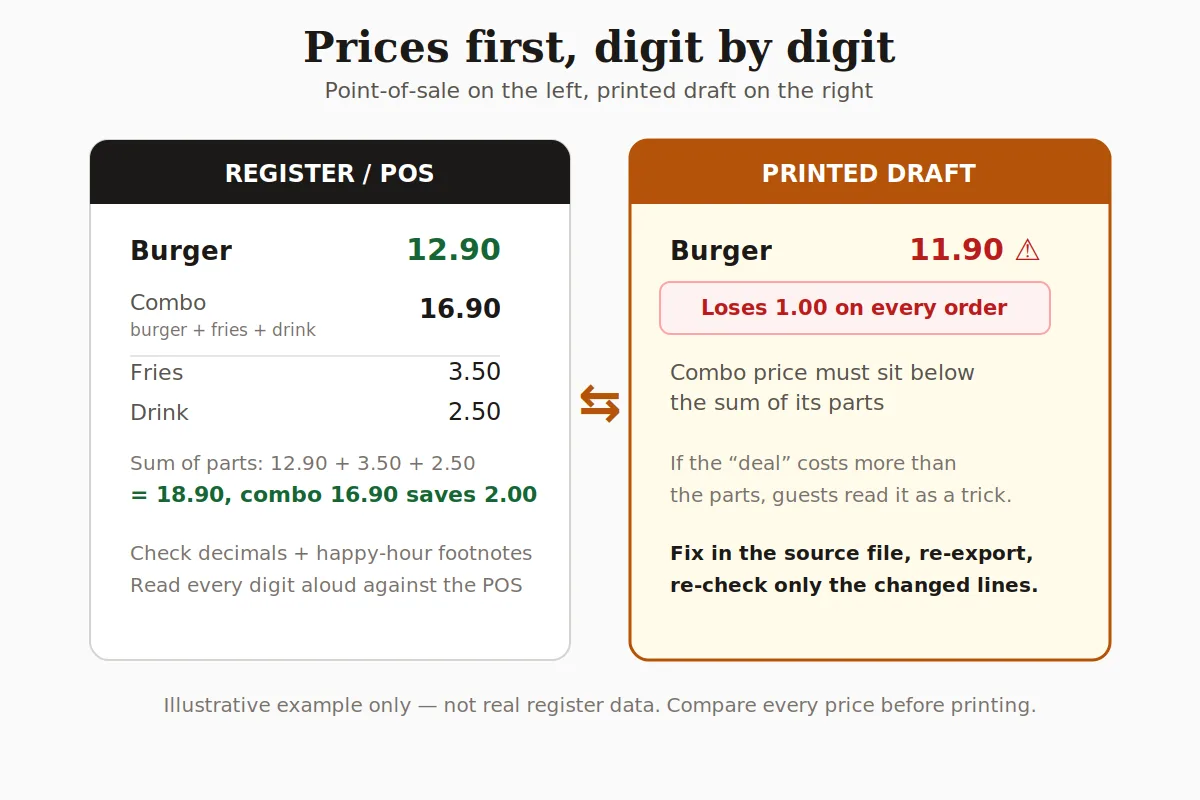
Guests forgive a missing accent. They do not forgive being charged more than the menu says. Open your point-of-sale or price sheet next to the draft and read every price digit by digit, including decimals and happy-hour footnotes. Illustrative example: a burger listed at 12.90 in the register but 11.90 on the printed menu means you lose 1.00 on every order until the reprint arrives. Confirm combo math too: if the combo price is not lower than the sum of its parts, the deal reads as a trick.
Read names and descriptions out loud
Once prices are honest, listen to the words. Read the full menu aloud, slowly. Your ear catches doubled words, wrong agreements, and dishes that sound nothing like what the kitchen sends out — the exact slips silent reading skips over.
Check that each description names the protein, the cooking method, and anything a guest cannot see, and that allergen notes match the current recipe, not last month's. Menus drift when a garnish changes and the line does not follow it. If you edited anything after this read-through, read the changed lines aloud again rather than trusting the fix at a glance.
Test the QR code on paper, not on screen
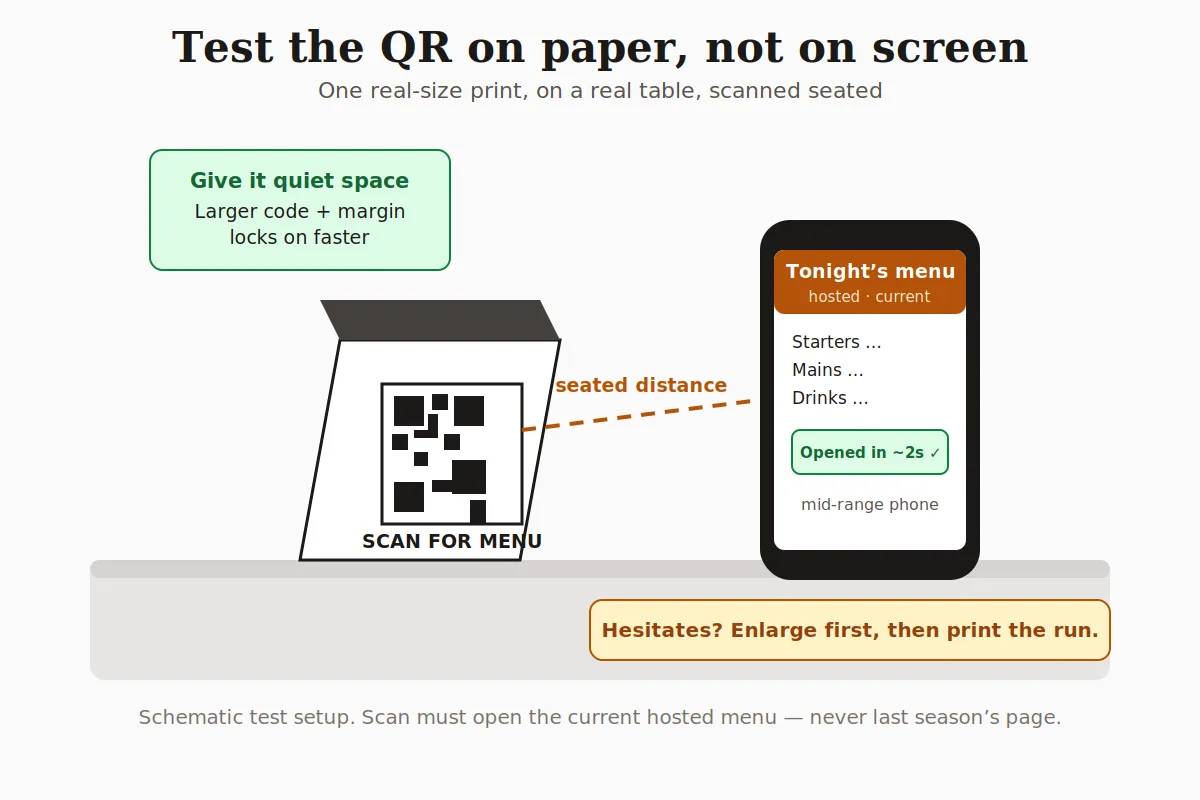
A QR code that scans on your monitor can fail once printed small, on textured stock, or under warm dining-room light. Screens are backlit and forgiving; paper is not. So test the real thing.
Print one copy at the real size, put it on a table, and scan it from a seated position with a mid-range phone. It should open the current hosted menu in a couple of seconds. If it hesitates, make the code larger or give it more quiet space before you print the run — that margin around the code is what lets a phone camera lock on in a dim room.
See: QR menu generator.
Check the layout with fresh eyes
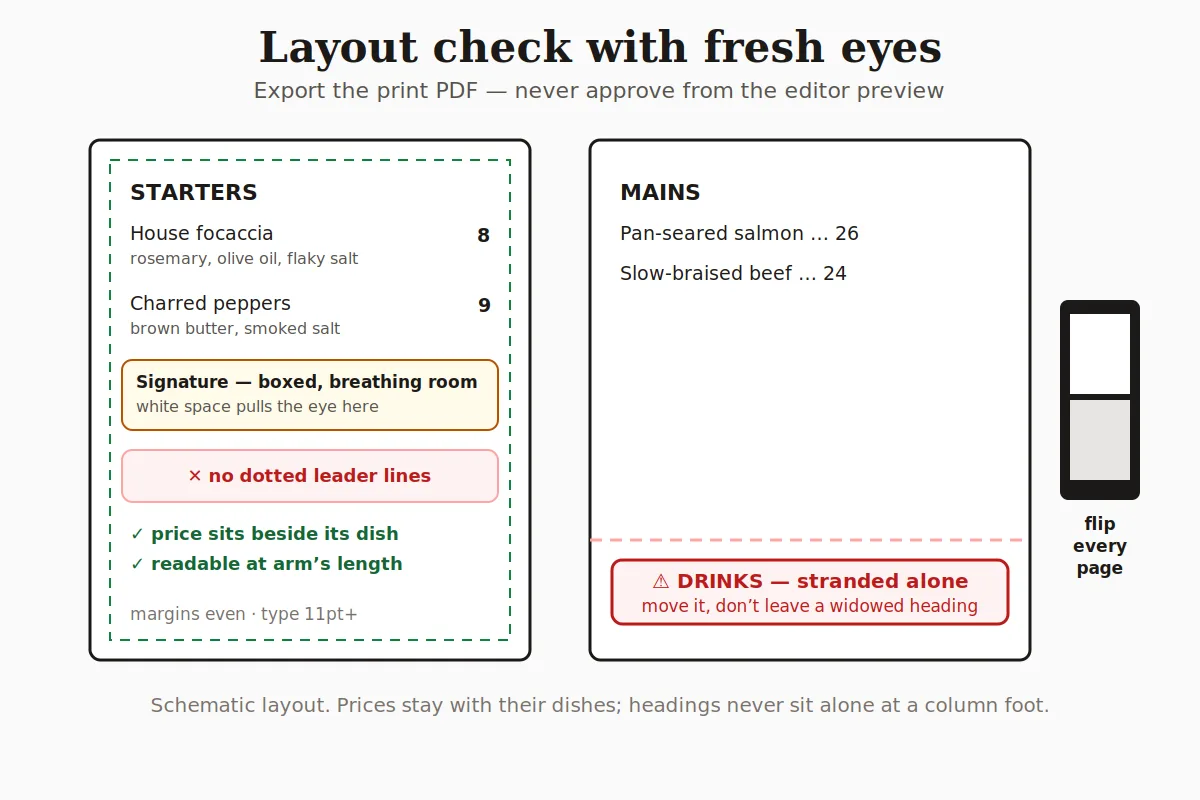
Step back and look at the page the way a guest will. Check margins, font sizes, and section breaks before you fall in love with the wording. Prices should sit close enough to their dishes that no one has to trace a dotted line across the page — leader dots turn a menu into a price list and invite bargain hunting.
The smallest text should still read comfortably at arm's length in low light. Watch for widowed headings stranded at the bottom of a column and for a drinks section that spilled onto a page of its own. Export the print PDF and flip through every page; never approve from the editor preview alone, because the preview hides exactly the breaks and margins the printer will keep.
See: Menu PDF maker.
Get one second person, then print one copy
You are now blind to your own draft, so hand the single printed copy to someone who has not seen it: a server, a cook, anyone. Ask them to order a full meal from it and to flag anything confusing — a price that surprises them, a description that does not match the plate, a section they cannot find.
Fix what they find in the source file, re-export, and re-check only the changed lines plus the QR scan. One careful cycle beats three rushed reprints. Once the paper is right, keep the hosted menu as your master copy so the next price change does not require another print run.
Quick steps
- 1
Check prices against the POS
Read every price digit by digit with the register beside the draft, including decimals, footnotes, and combo math.
- 2
Read the menu aloud
Read every name and description slowly; confirm protein, method, unseen items, and current allergen notes.
- 3
Scan the printed QR seated
Print one real-size copy, place it on a table, and confirm a mid-range phone opens the current hosted menu fast.
- 4
Review the exported PDF
Check margins, type size, price placement, and section breaks on the print PDF — never the editor preview.
- 5
Print one copy for a fresh reader
Have someone new order a full meal from it, fix findings in the source, re-export, and re-check the changed lines.
Frequently asked questions
- What should I check first before printing a menu?
- Prices. Read every price digit by digit against your point-of-sale, including decimals and happy-hour footnotes, and confirm combo prices sit below the sum of their parts. A price error costs money on every order until the reprint.
- Why does my QR code scan on screen but not on paper?
- Printed codes are smaller, unlit, and often on textured stock under warm light. Print one copy at the real size, set it on a table, and scan it seated with a mid-range phone. If it hesitates, enlarge the code and add quiet space before printing the run.
- Can I approve the menu from the editor preview?
- No. Export the print PDF and flip through every page. The preview hides the margin, section-break, and widowed-heading problems the printer will keep — and the smallest text must still read at arm's length.