Menu Tools · Updated 2026-10-06 · 5 min
QR Code Menu for Restaurants (Free Start) 2026
A QR code is a link, not the menu itself. A useful free start gives guests the correct current menu and gives the restaurant a repeatable way to review, publish and replace it. Choose the destination before printing the code.
Open the current Menu StudioPlans and credit allowances
Use a stable public menu address when that suits your service. A PDF can work for a small fixed menu, provided it is readable on a phone and you can replace the approved file deliberately. Check current account allowances before drafting; free does not mean unlimited hosting, paid artwork, collaboration or automatic updates.
Try the menu description generator
Hosted vs PDF: choose the destination
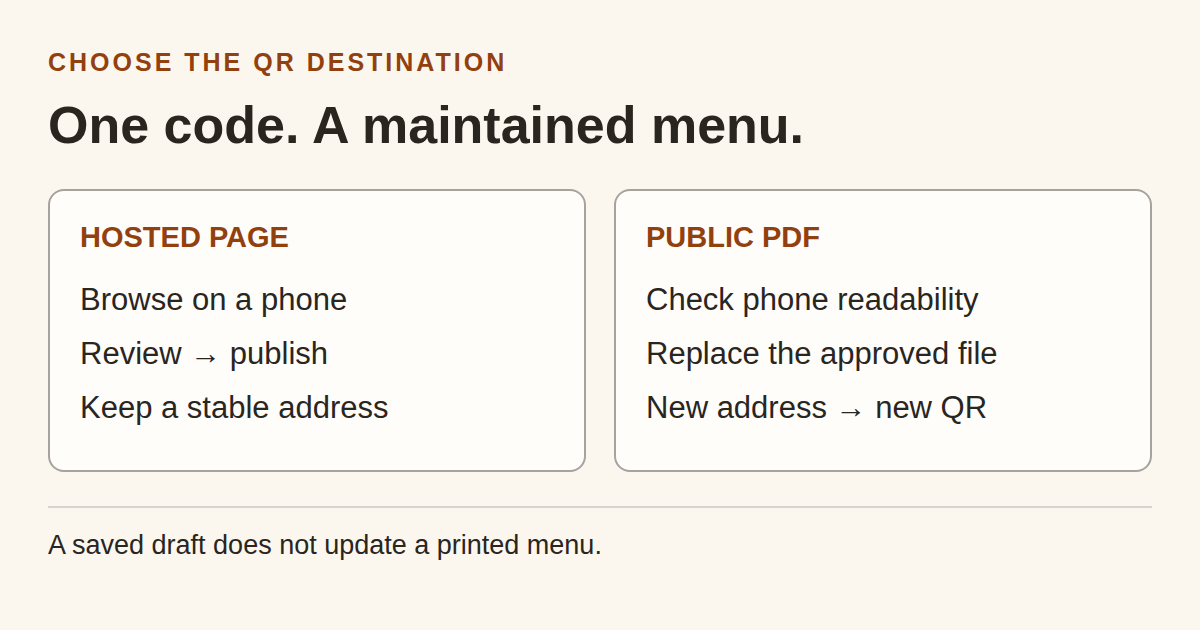
A hosted page is useful when guests need to browse categories on a phone and the restaurant can maintain a stable public address. A PDF is useful when the approved menu is short, fixed and already available as a readable file. Neither format checks facts or publishes a draft by itself.
For an existing printed QR, changing the approved file at the same address can keep the code valid. If the destination address changes, regenerate the QR and replace every printed copy. Downloading a revised PDF does not automatically replace an older hosted file.
| Question | Hosted menu | PDF at a public address |
|---|---|---|
| Frequent item or price changes | Review and explicitly publish the revised version at the maintained address. | Replace the approved hosted PDF, then scan the existing code to verify it. |
| Phone reading | Test category navigation, text size and actual content on a small screen. | Test without pinch-to-zoom; a print-sized page may need a separate phone layout. |
| No reliable signal | Keep a current printed or staff-assisted fallback. | A file already downloaded may be usable offline; a first scan still needs connectivity. |
| Destination changes | Replace QR materials if the address changes. | A newly uploaded file at a new address needs a new QR. |
Must-have content and a named owner
Start with current categories, dish names, portions or sizes, short factual descriptions and prices. State the relevant service or location and how the guest orders. A view-only menu should not imply that scanning completes an order.
Assign one person to verify ingredients, allergen information, dietary claims, prices and availability against current restaurant records. AI wording is a draft. A photograph should reflect the actual dish and have permission for the intended use; it does not replace the item details.
- Identify restaurant, location and service.
- Keep item name, description and price together.
- Review recipe and allergen information with the responsible person.
- State sold-out items, valid conditions and the real ordering handoff.
- Record a version and an owner for each public release.
MenuCrafters free draft: review before publishing
Open /build to reach the current Menu Studio. Check the allowance shown for your account and the current plans at /pricing before starting. Free allowances and paid features are separate; do not assume unlimited drafts, hosting, paid images or shared editing.
Supply the dishes you already sell, group them into categories and keep every price explicit. For wording help, use /tools/menu-description-generator and review its draft against the kitchen record. The tool does not read your POS inventory automatically.
Use a hypothetical three-item rehearsal first: a soup, a main and a drink with values you choose for the exercise. Label those values as test data; replace them with approved current prices before making a menu public.
Review the phone preview and print file, then use the publication controls available to the owner. Keep the previously approved version as a rollback reference. Editing a saved draft alone does not update the QR destination, and a printout already on the table does not change itself.
Test before you print
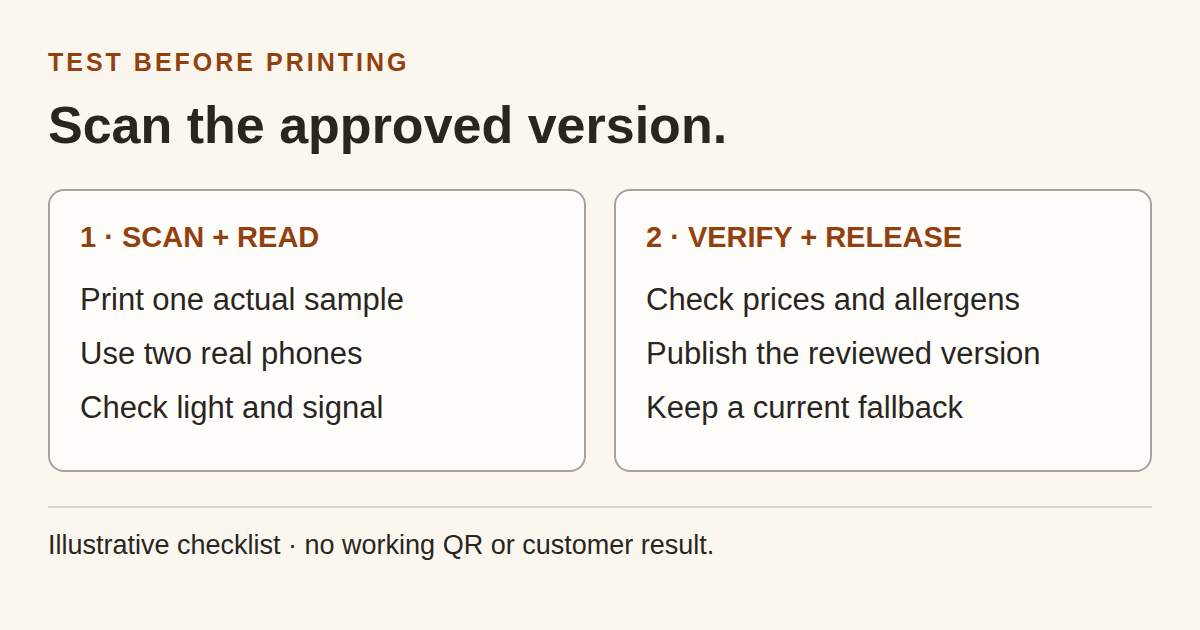
Print one sample at the intended size and place it where guests will scan. Scan it with two actual phones under the expected light and distance. This is a practical check, not a universal minimum-size guarantee.
Use the camera path a guest will use. Confirm the final public address, correct restaurant and service, readable names and prices, useful image loading and no unwanted sign-in step. Repeat on ordinary mobile data or a slower connection; retain a current paper fallback for a failed scan.
Illustrative sold-out rehearsal: mark the soup unavailable, deliberately publish the revised version, then scan the same sample again. Verify the soup status and all unchanged prices. If a revised PDF is part of the workflow, replace the hosted file and the counter printout explicitly. Do not infer that the draft save performed those actions.
- Correct destination and current version.
- Readable on a phone without relying on a large print layout.
- Prices, allergens and availability approved by the named owner.
- Publication confirmed through the actual printed QR.
- Current fallback and rollback version available.
Limits and ongoing maintenance
The product creates and stores reviewed menu work; it does not establish ingredient safety, legal compliance, POS synchronization, platform acceptance or sales results. Use current first-party product information at /pricing and the controls shown in /build as the source for allowances and supported actions.
After a change to recipes, prices, availability, location or service, repeat the public-page check. Keep the QR destination stable when possible, but verify it rather than assuming it. Record the exact version and the person who approved it.
No qualified traffic or conversion outcome is available for this guide. Collect genuine /build clicks and reading depth over 14–28 days before judging the article; the rehearsal is not customer traffic or measured improvement.
Limitations and assumptions
A free QR-code workflow may still impose limits on hosting, edits, analytics, exports, branding, privacy, or long-term URL availability. Confirm that the destination remains under your control, test the code before printing, keep an accessible non-phone option, and verify every price, recipe, allergen, dietary label, and availability change before publishing.
FAQ
Does free mean unlimited?
No. Check the current allowance and plan terms shown by the product before starting. Paid features, collaboration and image generation can have separate eligibility or credit requirements.
Can I put a PDF behind a QR code?
Yes, if the public file opens correctly and is readable on a phone. Maintain the approved file and test the printed code after replacement; changing the address requires replacing the QR.
Does saving a draft update the table QR?
A saved draft is not a confirmed public release. Use the available publication controls, then scan the actual printed QR to verify the approved version.
Who checks allergens and prices?
A named restaurant owner or responsible staff member verifies them against current records before publication. Generated wording does not confirm ingredients, dietary claims or current POS values.
What if the guest cannot load the menu?
Offer a current printed menu or staff assistance. Test the destination on a slower mobile connection and keep a fallback; a first QR scan needs access to its destination.
Build your menu
Turn the ideas in this guide into a hosted QR and print menu with MenuCrafters.